

Centre admins manage all information related to their registered preschools/schools. This information is only accessible to Centre admins and includes the Manage centre and Centre users sections in the Educator dashboard.
Set-up and manage your ELLA account
Centre admin - FAQs
Manage centre
How do I choose or update my preschool/school’s language preference?
The Centre admin is responsible for selecting the language for your preschool or school. This is set during registration but can be updated at any time in the Manage centre section of the Educator dashboard. Your preschool or school can choose multiple languages.
Note: You can only use one ELLA language per tablet device. You will need different devices for different languages.
To update your preschool's/school's language preferences the Centre admin should follow these steps.
- Go to the ELLA website (www.ella.edu.au) and log in to the Educator dashboard.
- Enter the multi-factor authentication (MFA) code sent to your email.
- Select Groups and outcomes.
- Select Manage centre in the main menu of the Educator dashboard.
- Find the list of languages and usernames and select Update languages.
- Choose the languages you wish to implement in your classrooms and select Confirm.
- Each language will have their own username and password to access the apps for that language. The ELLA app login username will include an abbreviated language identifier and the ID number of your preschool or school in the ELLA website, for example, ko_25285 will allow this school to download the Korean apps, and sp_25285 to download the Spanish apps.
- When you update your language choice, an email is sent to all Centre admin and Teachers linked to your preschool/school account to confirm the update.
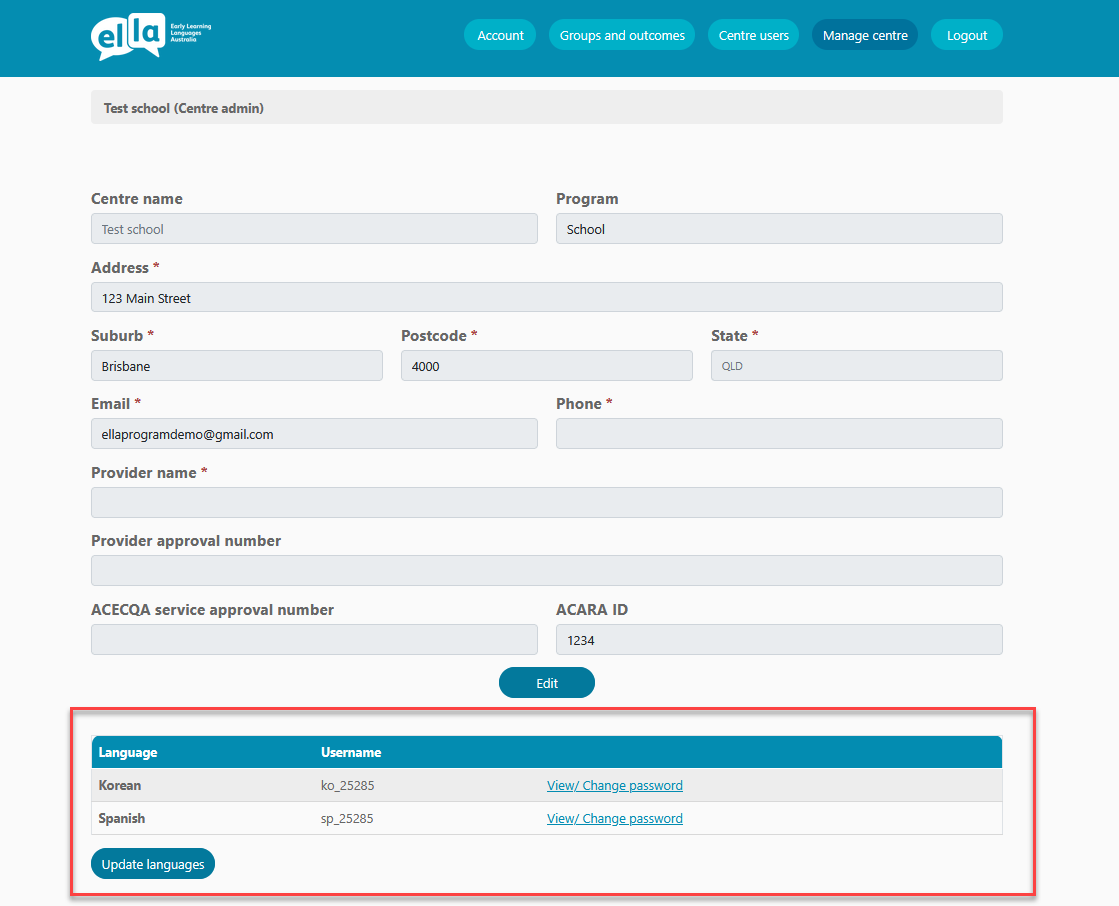
Screenshot showing Manage centres section showing the list of languages chosen.
How can I reset an ELLA app login password?
The Centre admin is responsible for managing the ELLA app logins. They will be prompted to set the app password in the ‘Welcome to the ELLA program!’ email sent to the Centre admin after the preschool/school account is created.
To change an ELLA app login password the Centre admin should follow these steps.
- Go to the ELLA website (www.ella.edu.au) and log in to the Educator dashboard.
- Enter the multi-factor authentication (MFA) code sent to your email.
- Select Groups and outcomes.
- Select Manage centre in the main menu of the Educator dashboard.
- Find the list of languages and usernames and select View/Change password.
- Select Choose password.
- Create a new password and select Confirm. Passwords must be at least 13 characters long and cannot be re-used using only sequential number changes.
- When you update your ELLA app login password, an email is sent to all Centre admin and Teachers linked to your preschool/school account to confirm that a change has been made.
- Ensure all Teachers who are using the ELLA account know the new ELLA app login password.
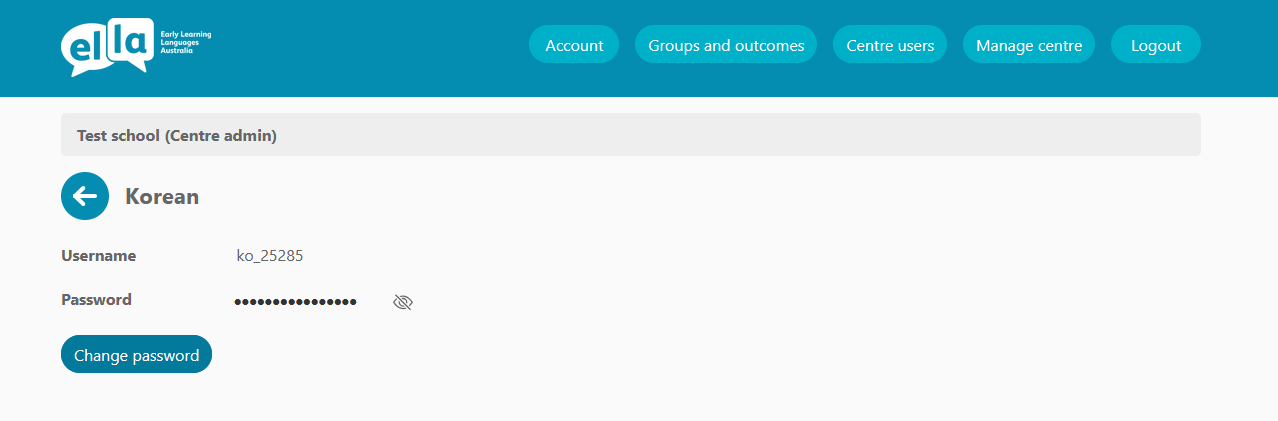
Screenshot showing how to change an ELLA app password
How can I update my preschool/school details?
The Centre admin is responsible for managing all information for the preschool/school. When your preschool or school first registers, relevant details are verified against the Australian Children’s Education & Care Quality Authority (ACECQA) national register for preschools, or the Australian Curriculum, Assessment and Reporting Authority (ACARA) for schools. These details pre-populate the account information. The Centre admin can update the following fields at any time, address, email, and phone fields at any time.
To update preschool or school details the Centre admin should these steps.
- Go to the ELLA website (www.ella.edu.au) and log in to the Educator dashboard.
- Enter the multi-factor authentication (MFA) code sent to your email.
- Select Groups and outcomes.
- Select Manage centre in the main menu of the Educator dashboard.
- Underneath the centre information, select Edit.
- Update the details and select Save changes.
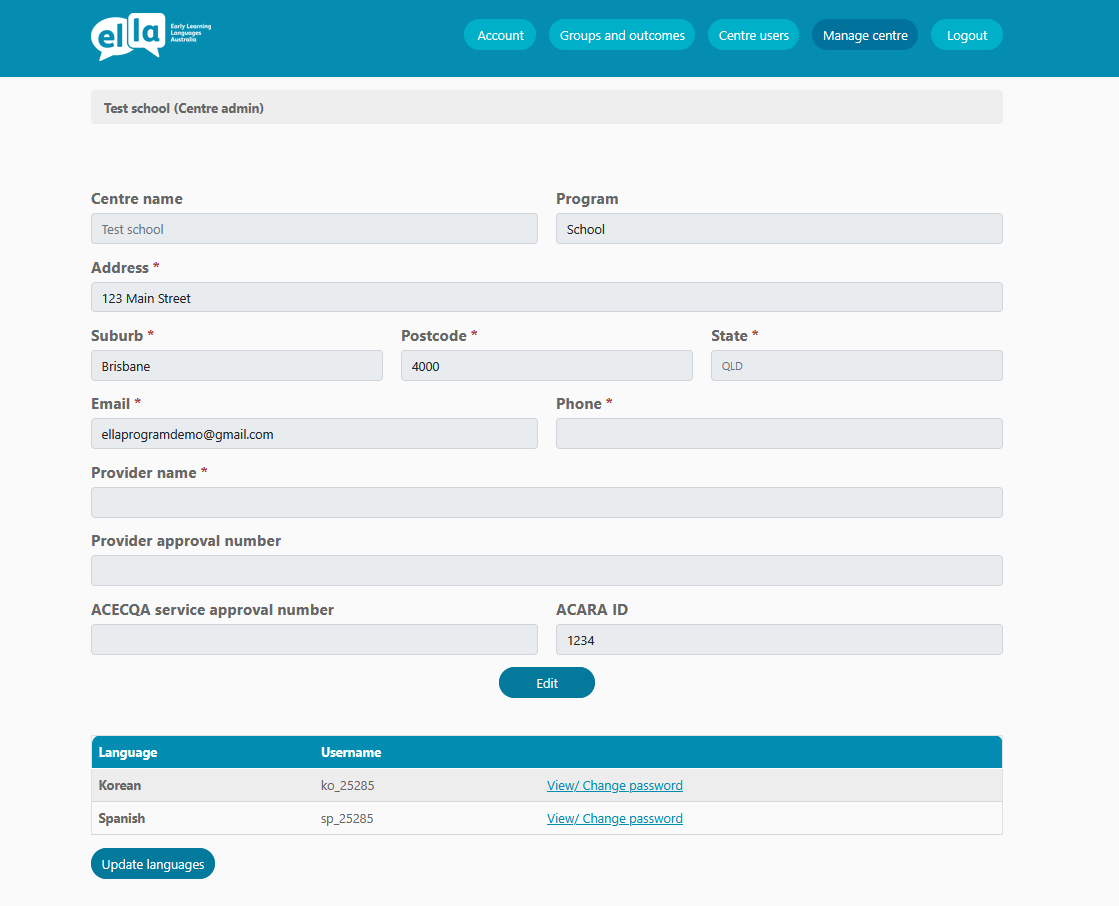
Screenshot showing Manage centre section where Centre admins can edit details of the preschool/school
How do I withdraw a preschool/school from ELLA?
If you wish to withdraw a preschool or school from the ELLA program, please contact the ELLA helpdesk.
Centre users
Can I add additional Centre admins to my preschool/school?
Yes. Each preschool/school must have at least one Centre admin and can have up to three Centre admins assigned to manage your ELLA account.
To add another Centre admin, the user must first be registered as a Teacher in the ELLA system. Once the new user has a Teacher account, an existing Centre admin can change the new user’s role.
The Centre admin should follow these steps to change a Teacher to a Centre admin.
- Go to the ELLA website (www.ella.edu.au) and log in to the Educator dashboard.
- Enter the multi-factor authentication (MFA) code sent to your email.
- Select Groups and outcomes.
- Select Centre users in the main menu of the Educator dashboard.
- Find the Teacher you want to update and select Manage next to their name.
- Select Make Centre admin.
The Teacher will receive an email confirming they are now a Centre admin for the preschool or school.
How do I unlock a Teacher login for my preschool/school’s account?
A Centre admin can unlock user accounts for a preschool or school at any time.
The Centre admin should follow these steps to unlock user accounts.
- Go to the ELLA website (www.ella.edu.au) and log in to the Educator dashboard.
- Enter the multi-factor authentication (MFA) code sent to your email.
- Select Groups and outcomes.
- Select Centre users in the main menu of the Educator dashboard.
- Find the Teacher whose account you want to update and select Manage next to their name.
- Select Unlock user account.
- The user will receive an email confirming the change to their account and prompting them to reset their password.
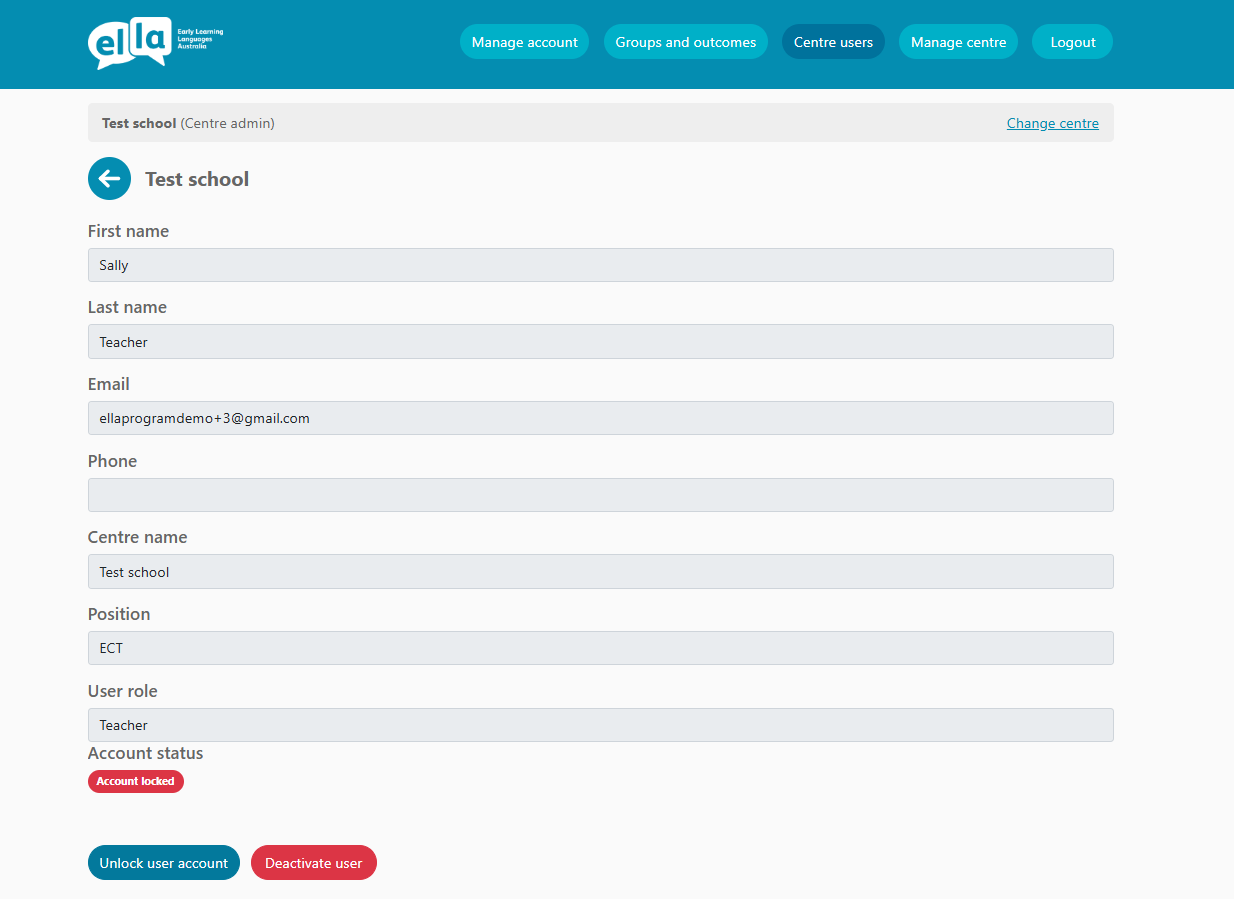
Screenshot showing where a Centre admin can unlock a user account for a preschool or school.
How do I verify a Teacher login to my preschool/school’s account?
To join a preschool/school’s ELLA account, a Teacher first submits a registration form for the ELLA program and selects the preschool/school they would like to be linked to. Once the registration is submitted, the Centre admin for that preschool/school will receive a notification that a new Teacher has registered to join. If their email address is an edu.au or gov.au email, their account will be automatically approved. You will need to verify other email addresses.
To verify Teacher requests with addresses not ending in edu.au or gov.au, the Centre admin should follow these steps.
- Go to the ELLA website (www.ella.edu.au) and log in to the Educator dashboard.
- Enter the multi-factor authentication (MFA) code sent to your email.
- Select Groups and outcomes.
- Select Centre users in the main menu of the Educator dashboard.
- Under Pending requests, you can approve or decline the Teacher request.
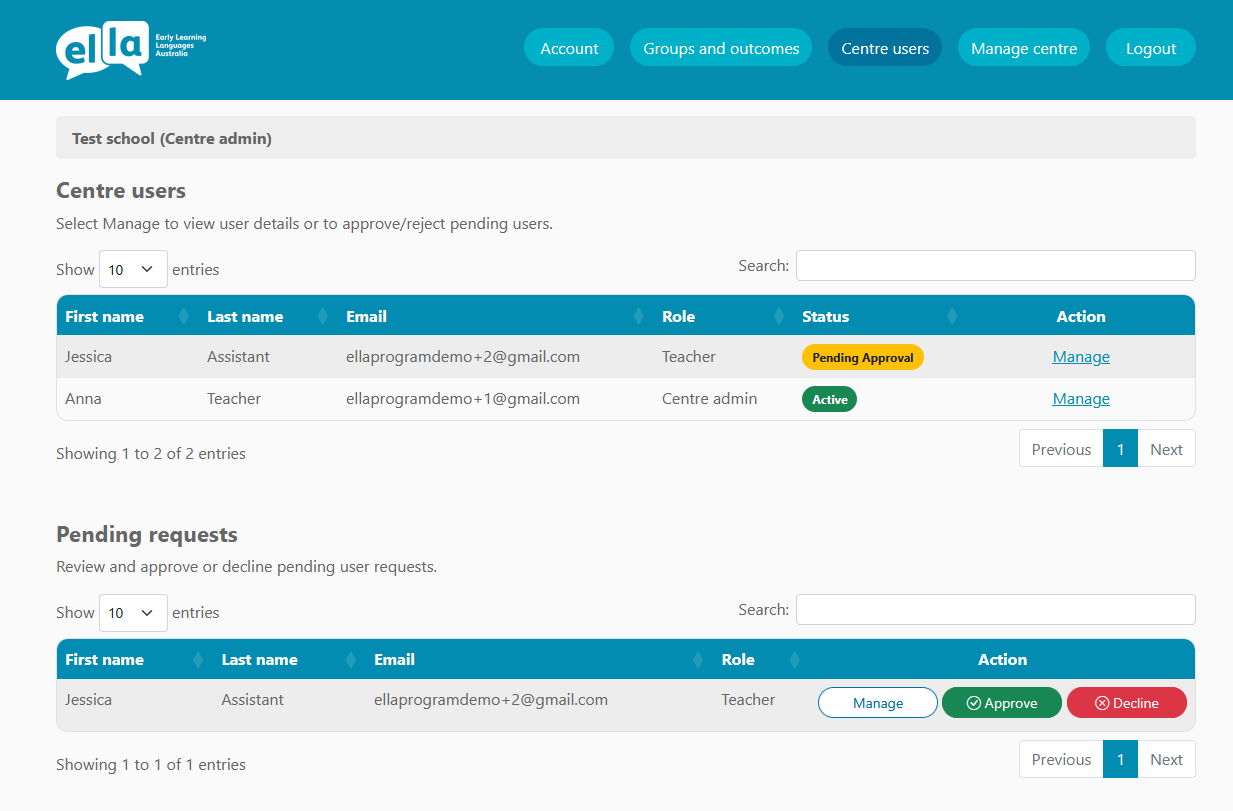
Screenshot showing Centre users section of the Educator dashboard, with pending Teacher account requests that can be approved or declined.
Can I change the user roles for my preschool or school?
Yes. The Centre admin can change a user’s role from Teacher to Centre admin, or from Centre admin to Teacher. Before making any changes, the user must already be registered to that preschool or school in the ELLA system.
The Centre admin should follow these steps to change the role of a preschool/school user.
- Go to the ELLA website (www.ella.edu.au), and log in to the Educator dashboard.
- Enter the multi-factor authentication (MFA) code sent to your email.
- Select Groups and outcomes.
- Select Centre users in the main menu of the Educator dashboard.
- Find the Teacher or Centre admin whose role you want to change and select Manage next to their name.
- Select Make Centre admin or Make Teacher.
- The user will receive an email confirming their new role for the preschool or school.
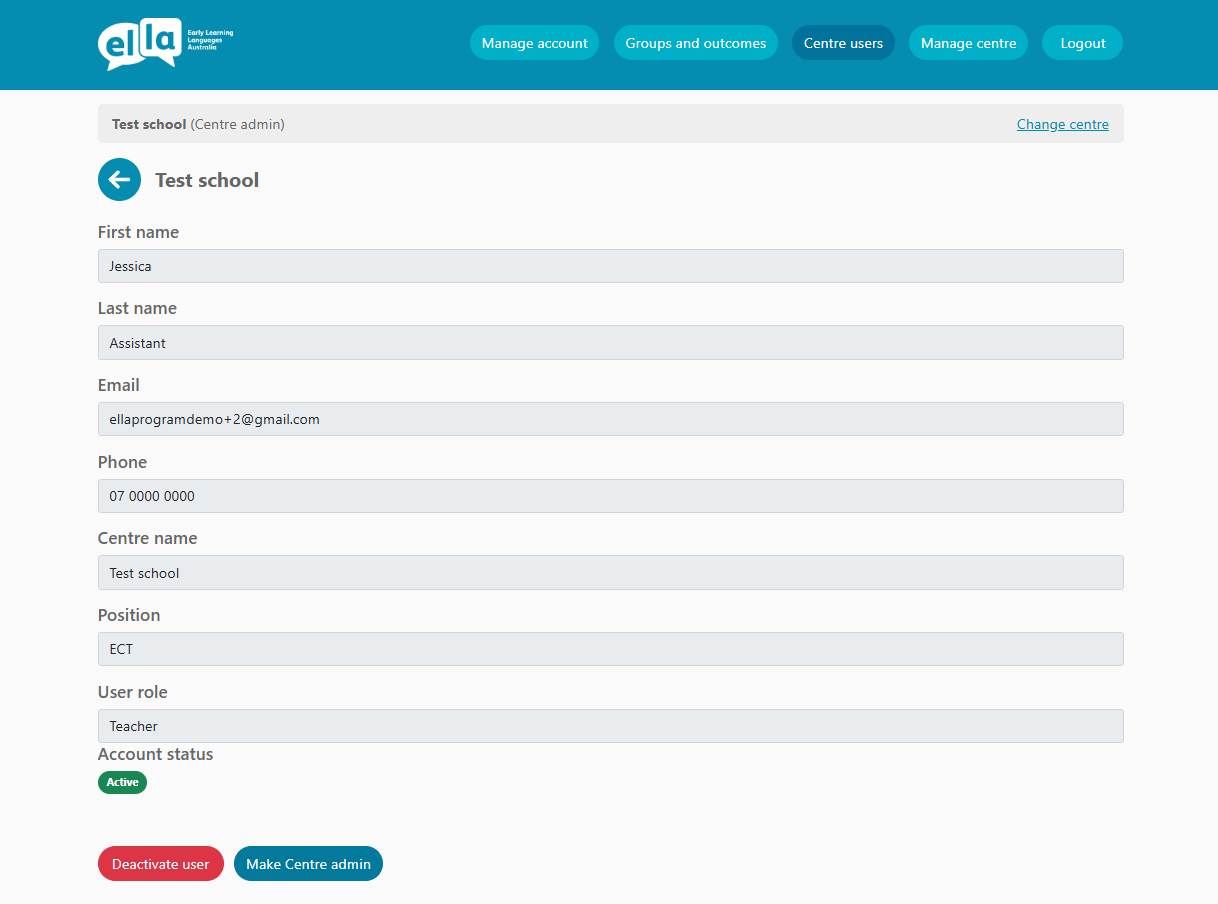
Screenshot showing where a Centre admin can change the user type of a Teacher account to another Centre admin for the preschool/school
Can I invite a new user to join my preschool or school?
Yes. Centre admins can invite other teachers and educators at their preschool or school to register for an ELLA account.
The Centre admin should follow these steps to invite new users.
- Go to the ELLA website (www.ella.edu.au) and log in to the Educator dashboard.
- Enter the multi-factor authentication (MFA) code sent to your email.
- Select Groups and outcomes.
- Select Centre users in the main menu of the Educator dashboard.
- Scroll to the bottom of the page and select Invite new users under Pending requests.
- Enter the new user’s details and select Send invite.
- The new user will receive an email inviting them to register for the ELLA program. They will then need to complete the registration process and join your preschool or school.
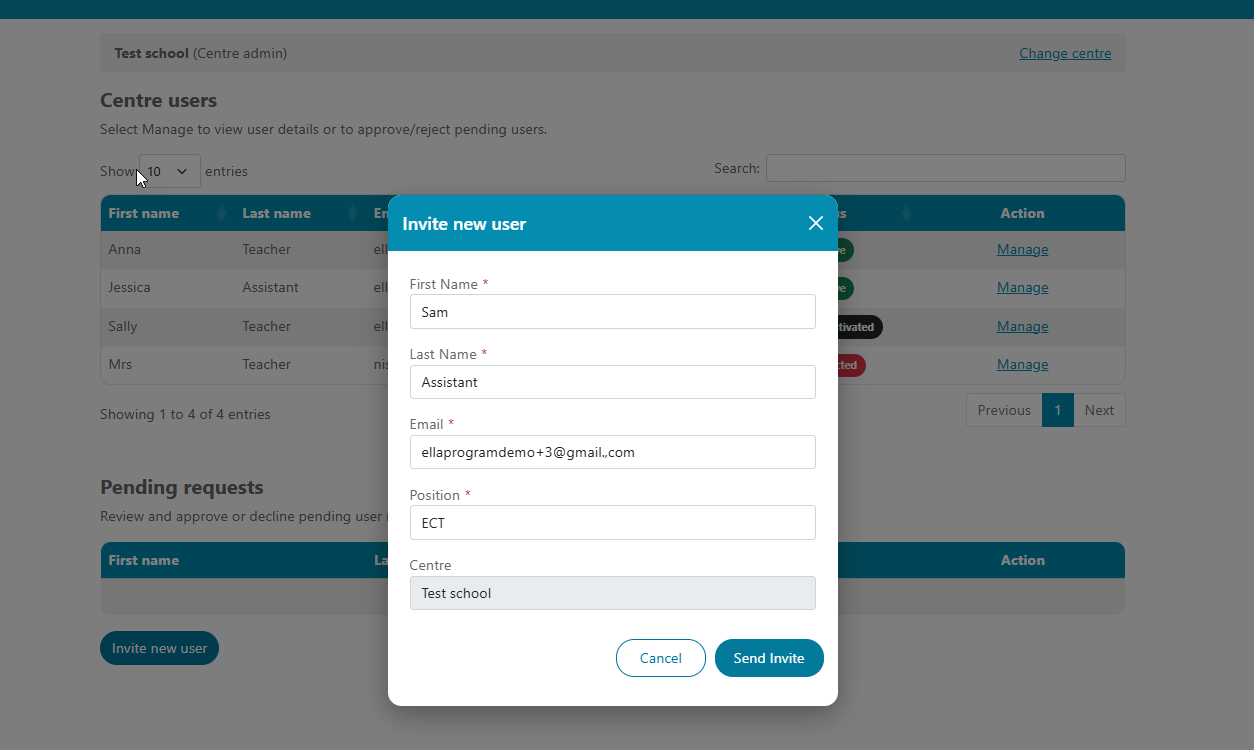
Screenshot showing a Centre admin inviting a new user to join the ELLA program for a preschool/school
How do I deactivate or reactivate a Teacher login to my preschool's or school’s account?
A Centre admin can deactivate or reactivate Teacher logins to a preschool or school at any time.
The Centre admin should follow these steps to deactivate or reactivate Teacher accounts.
- Go to the ELLA website (www.ella.edu.au) and log in to the Educator dashboard.
- Enter the multi-factor authentication (MFA) code sent to your email.
- Select Groups and outcomes.
- Select Centre users in the main menu of the Educator dashboard.
- Find the Teacher whose account you want to update and select Manage next to their name.
- Select Deactivate user or Reactivate user.
- The user will receive an email confirming the change to their account.
Screenshot showing screen where a Centre admin can deactivate or reactivate a user account for their preschool/school.
What happens when a Teacher deactivates their account?
Teachers can cancel their registration from a registered ELLA preschool or school at any time. When this occurs, Centre admins will receive an email notification advising that the Teacher has deactivated their account.
Note: It is recommended that Centre admins change the ELLA app login passwords when a Teacher is ‘deactivated’ from a preschool or school account. This helps maintain privacy and ensures the security of the preschool’s/school’s ELLA access.
Manage account
Can I have access to multiple preschool/school accounts?
Yes. You can use the same email address to be linked to more than one preschool/school. Simply submit a new registration form and select the new preschool or school from the dropdown list. For example, you can be a Centre admin for one school and have a Teacher account for another.
You can view all the preschools and schools you’re linked to in the Manage account section of the Educator dashboard.
To switch between preschool/school accounts, follow these steps.
- Go to the ELLA website (www.ella.edu.au) and log in to the Educator dashboard.
- Enter the multi-factor authentication (MFA) code sent to your email.
- Select Groups and outcomes.
- Select Change centre.
- Choose the preschool or school you want to switch to from the dropdown menu.
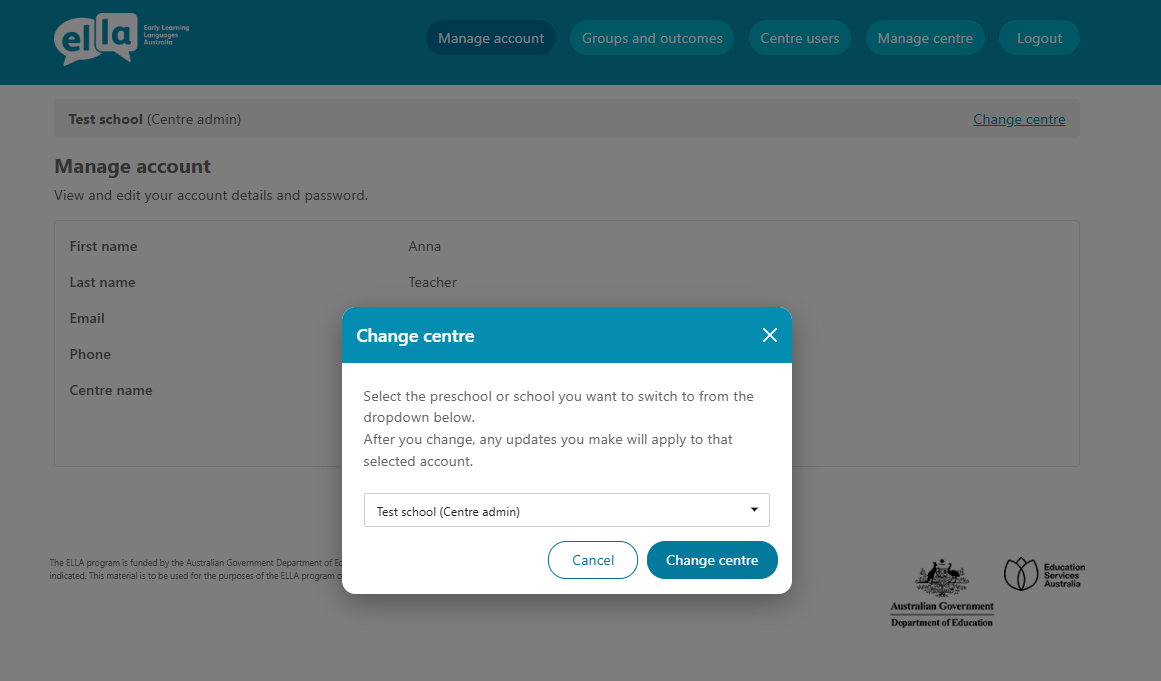
Screenshot showing screen when you change from one preschool/school account to another.
How do I reset my Educator dashboard password?
If you have forgotten your password you can change it by using the 'Forgot username and password?' link on the Educator dashboard login page.
- Select Forgot username and password? on the login page.
- Enter your Centre admin email address.
- Check your email inbox for an email containing an ELLA password reset link (check your junk or spam folder if you don’t see it in your inbox).
- Click on the link in the email to be taken to a page to create a new password.
- Choose a new password.
Important:
- You cannot change your password more than once every 24 hours.
- You cannot reuse a password using only sequential numbers (for example, changing ‘thisismypassword1’ to ‘thisismypassword2’).
- Your account will be locked if you enter an incorrect password three times.
You can also change your password viathe Educator dashboard. The Centre admin should follow these steps.
- Go to the ELLA website (www.ella.edu.au) and log in to the Educator dashboard.
- Enter the multi-factor authentication (MFA) code sent to your email.
- Select Groups and outcomes.
- Select Account in the main menu of the Educator dashboard.
- Select Change password.
- Choose a new password.
It is recommended to change your ELLA passwords regularly – at least once per term is best practice. Strong passwords should be at least 15 characters long and include a mix of uppercase letters, numbers and special characters. Here are some tips on creating strong passwords: https://www.cyber.gov.au/learn-basics/explore-basics/passphrases.
Can I change my account details?
Yes. You can view and edit your account details, such as your name and password, at any time.
To change your account details, follow these steps.
- Go to the ELLA website (www.ella.edu.au) and log in to the Educator dashboard.
- Enter the multi-factor authentication (MFA) code sent to your email.
- Select Groups and outcomes.
- Select Manage account in the main menu of the Educator dashboard.
- Select Edit.
- Update your details and select Save changes.
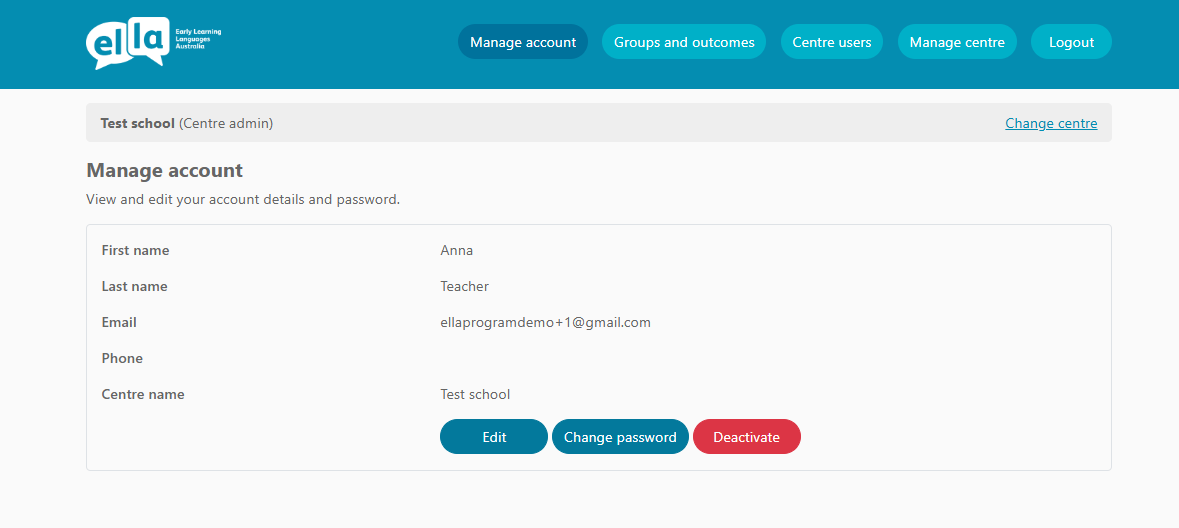
Screenshot showing how a Centre admin can change their own account details.
How do I deactivate my account from a preschool/school?
You can cancel your registration with any preschool or school participating in the ELLA program at any time. Before deactivating your account, please ensure that another user from your preschool or school is registered as a Centre admin.
To deactivate your account, follow these steps.
- Go to the ELLA website (www.ella.edu.au) and log in to the Educator dashboard.
- Enter the multi-factor authentication (MFA) code sent to your email.
- Select Groups and outcomes.
- Select Manage account in the main menu of the Educator dashboard.
- Select Deactivate.
- An email will be sent to the other Centre admins advising them that you have deactivated your account for that preschool or school.
Once your account is deactivated, you will be logged out of all active sessions and will no longer be able to access ELLA for that preschool or school. If you are linked to multiple preschools or schools, you will need deactivate your account for each one individually.
Screenshot showing Manage account screen where a Centre admin can deactivate their account.

Have a question or need some help?
Contact the ELLA helpdesk
[email protected] 1800 468 303 (9 am – 4 pm AEST, Mon–Fri)